Daily Closing of the POS Transactions
 0
0
 0
0
Read Time:1 Minute, 15 Second
 At the end of this topic, you will be able to: At the end of this topic, you will be able to:◾Perform daily closing |
How to perform closing settlement
Every outlet needs to do a daily closing settlement of the POS at the end of the workday.
[1] On Main screen, click  .
.
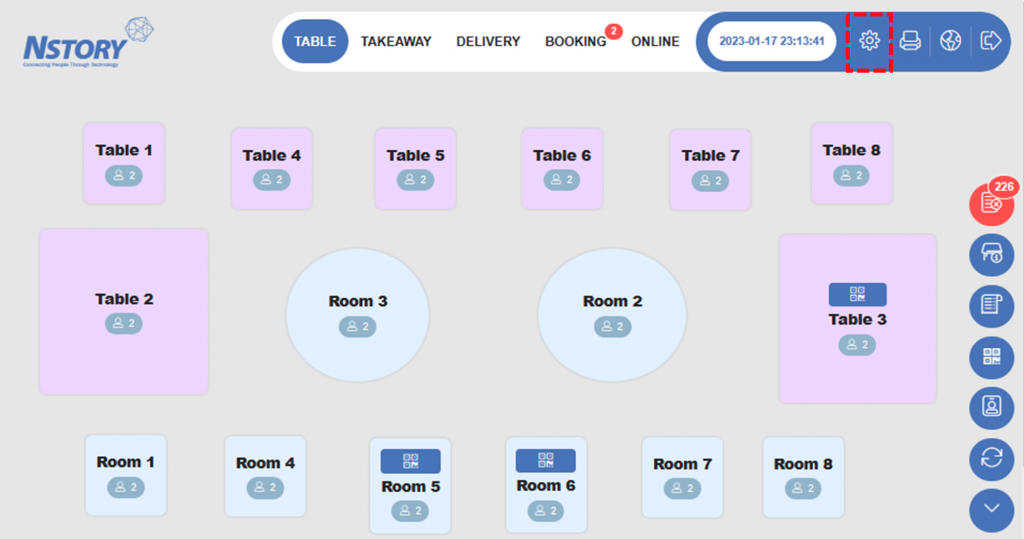
[2] Select the date to do daily closing. Today or last working date should be shown automatically.
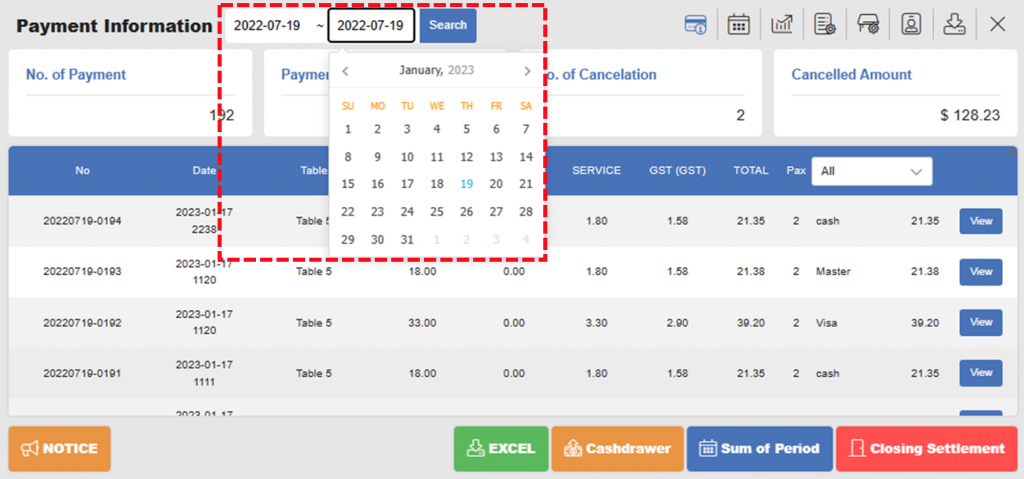
| What should I do if it shows a different date? ◾Date is earlier than today Proceed closing till today ◾Date is later than today Closing settlement is done more than enough. Skip the closing until it matches or contact to Nstory. |
[3] Click Closing Settlement to open Closing Popup.
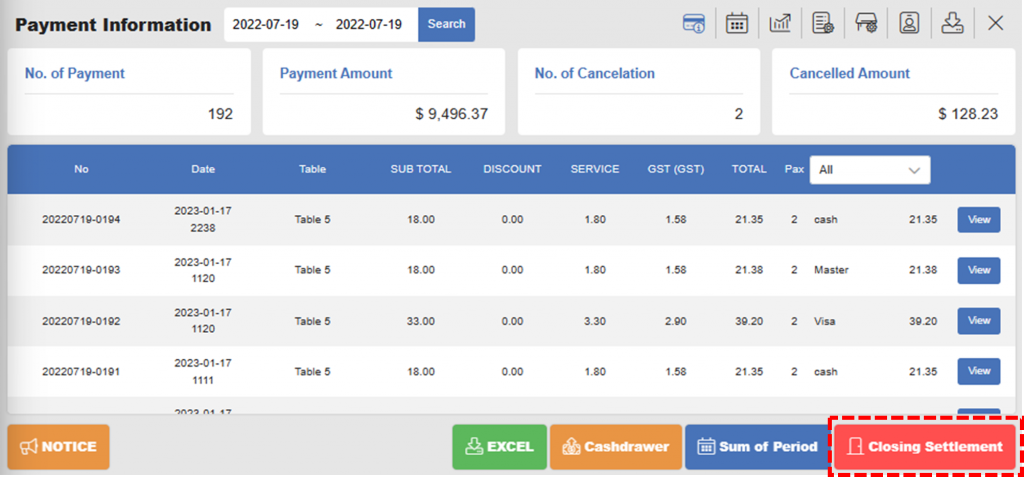
[4] Make sure if the date and the number of payments are correct. And click Closing.
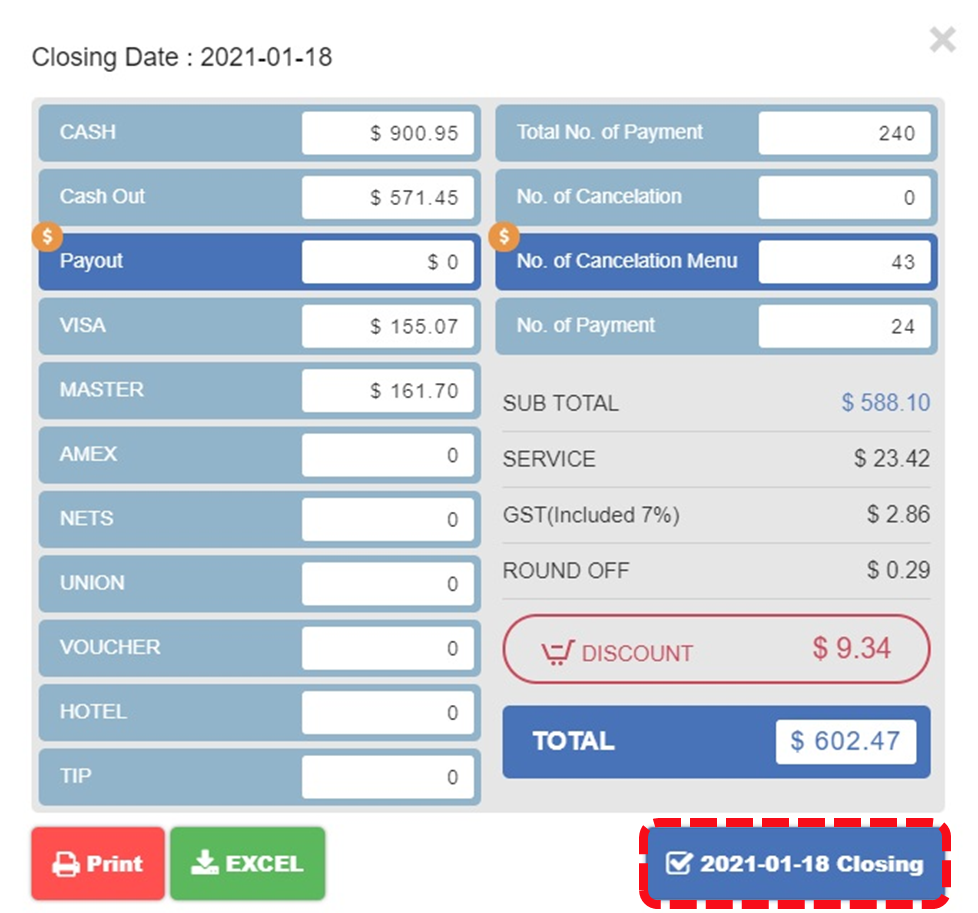
| Notes: ◾For closing, there should be no uncompleted orders. ◾Click Print to print out the sales data from the receipt printer. ◾Click Excel to download the data in Excel format. |
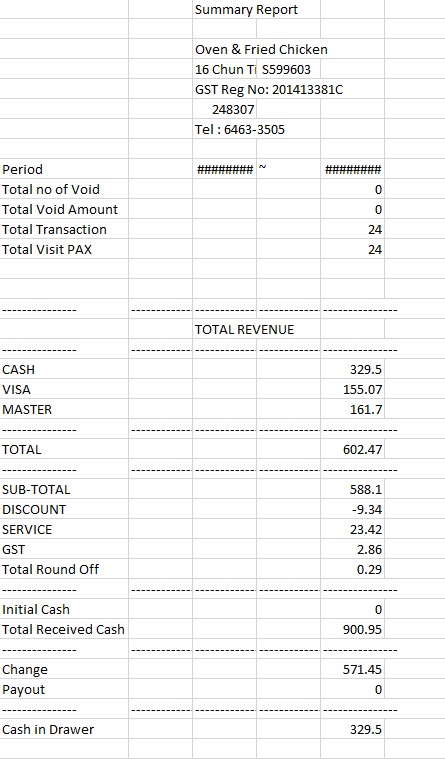
Sample of excel format (.csv)
What if I miss closing settlement on time?
If you miss Closing Settlement, you will get a pop-up window when you open NPOS.
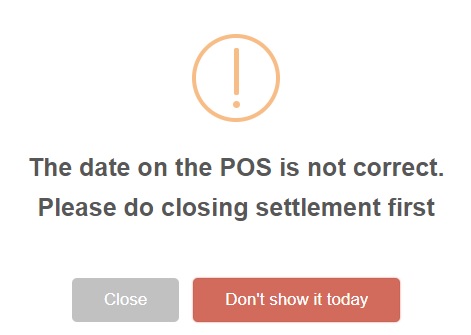
Don’t worry about this pop-up window, because it is to remind users to perform Closing Settlement.
That’s all! You have just successfully performed the closing settlement for the day!
Related pages
◀️ Go back to Training for Manager
◀️ Go back to NPOS Manual
Last updated on 19 Jan 2023


Happy
0 %

Sad
0 %

Excited
0 %

Sleepy
0 %

Angry
0 %

Surprise
0 %
2 Replies to “Daily Closing of the POS Transactions”